Getting Started With SuperAltTabSwitcher
This beginner-friendly guide walks you through installation, basic setup, and your first customizations to enhance your Windows experience.

Download & Installation
Installing SuperAltTabSwitcher is quick and straightforward. Follow these steps to get started:
Step 1: Download the Installer
- Visit the download page
- Click the "Download" button
Step 2: Run the Installer
- Locate the downloaded file
- Double-click SuperAltTabSwitcher-Setup.exe to start installation
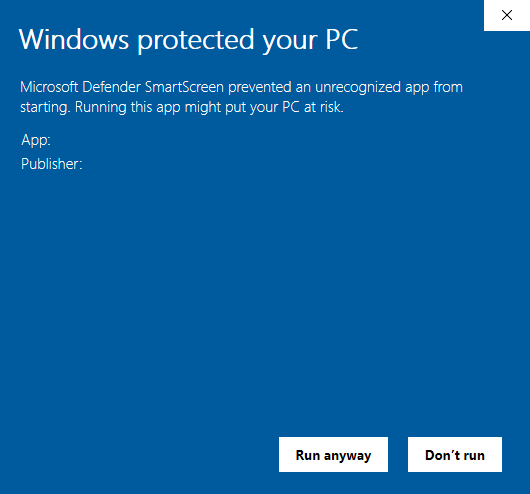
- If Windows shows a security warning, click "More info" then "Run anyway"
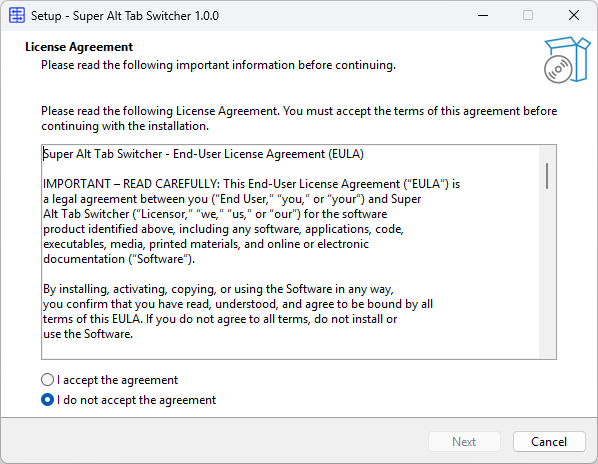
- Follow the installation wizard prompts
- Click "Install" and wait for the process to complete
First Launch and Setup
After installation completes, SuperAltTabSwitcher will launch if the checkbox was selected to launch, if not find it from the Windows launcher menu.
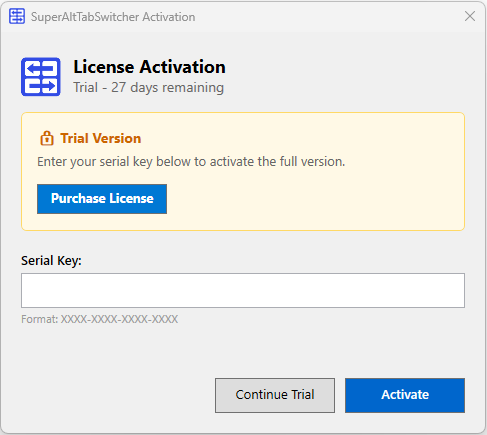
Activation Window
If you have not purchased a license, click "Continue Trial" to close the activation window and start the application.
Initial Configuration
The application will install with default settings if no previous configuration exists. Find the tray Icon and double click it (or right click it) to open the settings window.

Basic Usage
Now that SuperAltTabSwitcher is installed, let's learn the basics
Opening the Switcher
Press Alt + Tab to open the switcher. By default (classic) you will see all the programs you have open with the program icon and the program title below.

Navigating Between Windows
While holding Alt, use these keys to navigate:
- Tab - Move forward through windows
- Mouse Click - Click any window to switch to it (this is affected by "Allow switching windows with mouse click") setting
Closing the Switcher
Simply let go of the Alt key
Quick Switch Vs Always Cycle
- Always Cycle is the default setting which will always show the switcher window once alt + tab is pressed.
- Quick switch bypasses the switcher window for the first press instantly changing you to your previous window. If tab is pressed for the second time the switcher window will show. Quick switch may be a better option if you regularly use full screen applications or games.
Changing the display
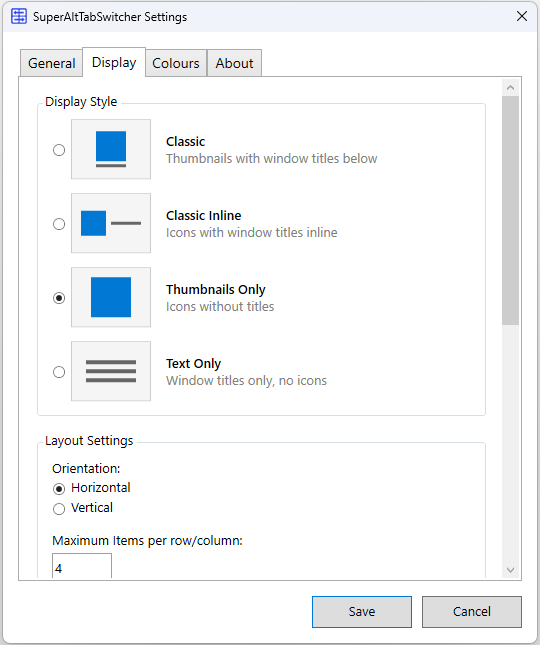
Navigate to the "Display" tab. You can change between the 4 display styles by clicking the button such as Thumbnails Only. Simply select your preferred style and select "Save" - You must save your changes for them to apply! For more customizations take a look at the "Colours" tab.
Activating a license
To activate a license navigate to the "About" tab in settings
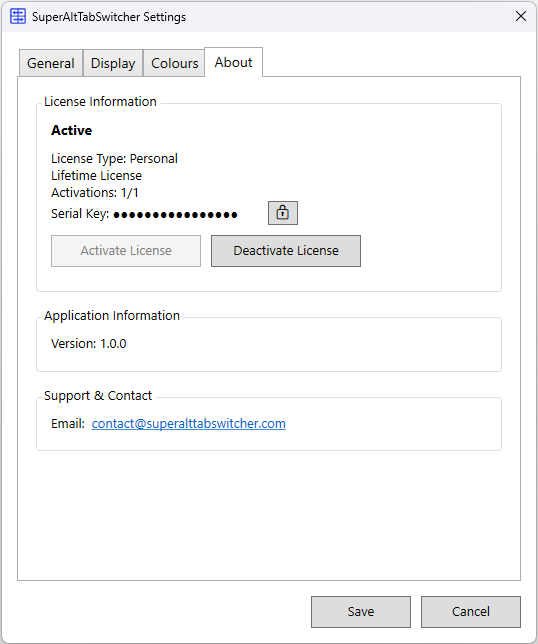
Activation
Paste your license key into the activation window and click "Activate".
Ready to Experience SuperAltTabSwitcher?
Download now and transform your window switching experience
Download Free Trial